
The screen your team will live in every day. Where new conversations land, how to reply, assign a chat to a teammate, leave internal comments and close the conversation when it is done. This video also tours the message bar, which is where snippets live (guide below).
respond.io basics · for CS teams
Learn respond.io in one page
Your inbox is already set up by us. Two short official videos and one guide to snippets (the saved-reply shortcuts most teams ask us about) get your team answering chats. No prior experience needed. Work through it top to bottom.
2 videos + 1 optional
6 min core watch time
1 snippets guide
For everyone on the inbox

First things first: your setup is already done
The Zelix team has set up and configured your respond.io account: your WhatsApp number is connected, your workspace settings are done and your teammates are invited. Nothing to install, nothing to connect. Now it is time to get acquainted with your new inbox.
WhatsApp
Facebook
Instagram
 Team inbox
Priya Hi! Is the 2pm slot still open?
Marcus Saw your post, what are your prices?
Aisha Do you deliver to the east side?
WhatsApp, Facebook and Instagram are already connected. Every chat, DM and message from those channels pulls into this one inbox automatically, so your team answers everything from one screen instead of three apps. And we are here for any query along the way: message us on WhatsApp whenever you need help.
Watch these videos
All official respond.io tutorials. Click a thumbnail to play it right here. Start with the inbox, then the mobile app. The third video is optional background viewing; we have already done that setup for you.
Install the app on iOS or Android, turn on notifications and answer customers when you are away from the desk. Two minutes, and your team never misses an after-hours enquiry they were meant to catch.
How a workspace gets built from zero: settings, channel connections, inviting teammates and user roles. Watch it only if you are curious how the plumbing works behind your inbox.
You can skip this one. The Zelix team has already set up and configured your respond.io account and connected your WhatsApp number, and we are here to help with any query. Need a setting changed? Message us on WhatsApp and we will handle it.
The two main videos run just over 6 minutes together (the optional setup tour adds another 5:48). Set aside about 20 minutes so you can click around your own workspace while you watch. Do it with the inbox open in another tab.
Now try it: send yourself a test message
The fastest way to learn the inbox is a real conversation that cannot go wrong: one with yourself. Grab your personal phone and try this right now.
1
Message your business
From your personal number, send a WhatsApp message to your business number, or DM your Facebook page or Instagram account. "Hi, just testing!" is plenty.
2
Watch it stream in
Within seconds your message appears in the respond.io inbox as a new conversation, with your name and the channel icon beside it.
3
Reply from respond.io
Answer yourself from the inbox, then check your phone: the reply lands in the same chat you started. That round trip is the whole platform in miniature.
Fastest way: we will open WhatsApp for you
Enter the WhatsApp number connected to your inbox (your business number). We will open WhatsApp with a ready-made test message; you just hit send, then watch it land in the inbox.
That number does not look right. Enter it without the country code, like 8123 4567.
Opens WhatsApp on this device with the message: "Hi! This is a test message for our new respond.io inbox." Nothing sends until you press send in WhatsApp.
Then make that conversation your playground. It is your own chat, so nothing you click touches a real customer. Use it to get comfortable with the features from the videos:
- Assign the conversation to a teammate, then take it back
- Comment internally; your customer (you) never sees internal notes
- Insert a snippet by typing / in the message bar (guide below)
- Close the conversation when done, then find it again and reopen it
- Open the mobile app and reply to the same test chat from your phone
Encourage everyone on the team to run their own test conversation; it is the quickest way to see how messages flow in and out before real customers are on the line.
Hand a conversation to a teammate
Every conversation has one owner, so nothing falls through the cracks. When a chat needs someone else (a question you cannot answer, the end of your shift, an escalation), assign it over instead of leaving it hanging.
1
Open the Assignment dropdown
Inside any conversation, the Assignment dropdown sits at the top right of the inbox. It lists every teammate with their avatar; type a name to search.
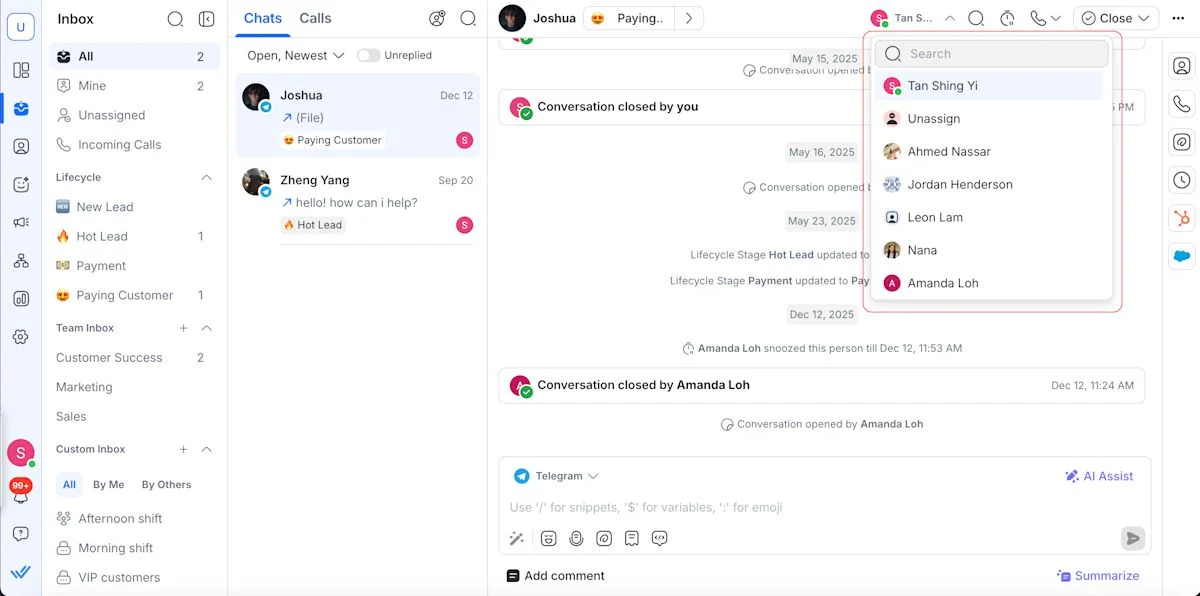 Official screenshot, respond.io help centre: the Assignment dropdown
2
Pick the teammate, or Unassign
Select a teammate and the conversation moves to their Mine list; they see it the moment they open the inbox. Choose Unassign instead to send the chat back to the Unassigned queue, where anyone free can pick it up.
Hand over the context too. Before you assign, leave an internal comment with the one line your teammate needs ("paid deposit, waiting on invoice"). Comments stay internal; the customer never sees them.
3
Close it when it is done
Next to the Assignment dropdown is the Close button. When the customer's question is fully answered, close the conversation; if they message again later, it simply reopens. Closing keeps everyone's inbox honest: whatever is open still needs someone.
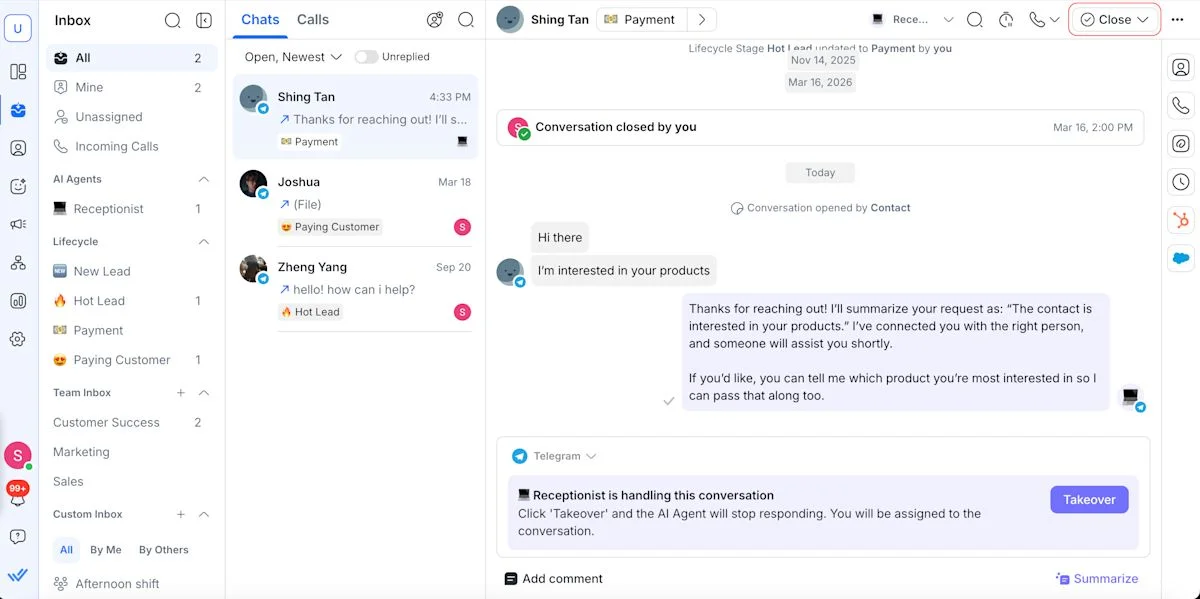 Official screenshot, respond.io help centre: the Close button beside the dropdown
Try both on your own test conversation from the section above. Full written guide: assigning and closing a conversation.
Snippets: save the replies you type every day
The question we get most from CS teams: "how do I save shortcuts?" In respond.io they are called snippets. You save a reply once, give it a short name, and anyone on the team can insert it in a chat by typing /. Two steps to set up:
1
Create your snippets in Workspace Settings
Go to Settings (the gear icon in the left rail) Workspace Settings Snippets, then click + Add Snippet. Only Owners and Managers can open this settings page; agents can use every snippet once it is saved.
 Settings › Inbox settings › Snippets
Each snippet has four fields:
- Name: keep it short, it becomes the shortcut you type after / (for example opening-hours)
- Message: the full reply that gets inserted
- Topic (optional): tags that group related snippets, useful once you have more than ten
- Files (optional): attach up to 5 files, like a price list PDF or a location map
The first button deep-links into the workspace we manage for you; log in with your respond.io account if asked. In a different workspace, just follow the path above instead.
Official demo, respond.io help centre
 Creating a snippet in Settings › Snippets, from the official respond.io guide
2
Use a snippet in any conversation
In the inbox, type / in the message bar and start typing the snippet name. Suggestions appear as you type; pick one and the full reply drops into the message bar. You can also click the snippet icon under the message bar, circled below.
 The snippet icon in the message bar. Hover shows "Snippet, shortcut /"
Official demo, respond.io help centre
 Typing / then the snippet name inserts the saved reply instantly
Always read before you send. A snippet drops text into the message bar but does not send it, so you can personalise the name or details first. That pause is what keeps saved replies from sounding canned.
respond.io does not publish a standalone snippets video; the two moving demos above are from their official help centre, and video 1 tours the message bar where the snippet icon sits.
Common questions
We already use the WhatsApp Business App to reply to customers. Can we keep using it? Will chats still appear in respond.io?
Yes to both. Keep using the WhatsApp Business App exactly as you do today. Every chat shows up in both places: the app on your phone and the respond.io inbox. Reply from whichever is closer; the other side stays in sync, so nothing gets missed.
One rule worth knowing: on the respond.io side, WhatsApp gives you a 24 hour window to reply freely after a customer's last message. Past that window, respond.io needs an approved template message to restart the chat. Your WhatsApp Business App has no such limit, so you can always follow up from the app as normal.
This one-number, two-places setup is a WhatsApp feature called Coexistence, and we set it up for you.
WhatsApp App, API and Coexistence, explained simply
Think of your WhatsApp number as the shop's phone line. Then:
WhatsApp Business App
The free app on the shop's phone. One person holds the phone and types every reply, just like normal WhatsApp.
WhatsApp API
The same number, plugged into software instead of one phone. It has no app of its own; respond.io is its screen. This is what lets a whole team, and later your AI agents, answer from one inbox.
Coexistence
Both at once, on one number. A customer's message lands in the app AND in respond.io. Reply from either; both sides show the full conversation.
Schedule your 45-minute team training
Prefer to learn live? We run a free 45-minute video walkthrough for your whole team: the inbox, assigning and closing, snippets, the mobile app, and your questions at the end. Bring everyone who will touch the inbox.
Before you close this tab
Two quick things so the whole team can find the inbox again tomorrow morning.
1
Log in to respond.io and bookmark it
Your inbox lives at app.respond.io. Open it, log in with your account, then bookmark the page (Cmd + D on Mac, Ctrl + D on Windows) so it is one click away every morning.
2
Download the mobile app
Install respond.io on your phone and log in with the same account, so messages that arrive after hours still get seen. Video 2 above shows the app in action.
Reading this without an account yet?
This page assumes we have already set up your workspace. If your team does not have its respond.io account yet, leave your details and the team will set everything up, then email you when your login is ready.
Request received
We will set up your respond.io workspace and email you at when your login is ready. Anything urgent in the meantime? Message us on WhatsApp.
Stuck on something?
Message the team and we will point you at the right setting or video. For the longer six-lesson course, see our full respond.io onboarding series.