
The complete loop from a template to a live agent: configure it, customize the Instructions and Actions, test it, and publish. Watch this to see how the pieces fit together before you edit your own.
AI Agent management · for CS teams
Update and fine-tune your AI Agent yourself
Your AI Agent follows a set of written Instructions and Actions inside respond.io. When a price changes, a policy shifts, or the agent phrases something the wrong way, you can fix it in minutes: edit the text, test it in a safe panel, then save. This guide shows you exactly how, with real screens and worked examples.
Edit it yourself
Test before it goes live
3 official videos
~15 min read

What you are actually editing
Your AI Agent is not a black box. It behaves the way it does because of two things you can read and change: its Instructions (who it is and how it should reply) and its Actions (things it is allowed to do, like assigning a chat or closing it). Update either, and the agent's behaviour changes. That is the whole idea of this page.
A quick map before you touch anything:
- Instructions: a plain-text brief, written in short sections. This is the agent's brain: its role, its tone, the facts it knows, and the steps it follows.
- Actions: switches for what the agent can do in a conversation (for example Assign to agent or team and Close conversations), each with its own short rule for when to do it.
- The Test panel: a chat on the right of the editor where you rehearse a change. Anything the agent does there is test-only and never reaches a real customer.
- Save: nothing you type reaches customers until you save. Change your mind first? Cancel throws the edit away.
You cannot break it in one click. Editing opens a working copy, the Test panel is sealed off from live chats, and you can Cancel any time before saving. The worst case is a save you do not like, which you undo by pasting your saved copy back (Step 5 shows how).
Watch these first
Three short official respond.io videos. The first shows the whole flow end to end, the second is all about writing good Instructions, and the third is a worked example. Click a thumbnail to play it right here. About 11 minutes together.
The one to really absorb. How to phrase Instructions so the agent does what you mean: clear structure, specific rules, and examples. Everything in the recipes below builds on this.
A concrete example of tuning an agent for product recommendations and pricing enquiries. A good model for the kind of edits your team will make most.
About 11 minutes of video in total. Watch with your own AI Agent open in another tab so you can follow along. The rest of this page is the written reference you will come back to.
Find the editor and read the screen
Your agent already exists; we built it for you. To edit it, open the AI Agent module in respond.io, choose your agent and click Edit. You land on one screen with everything on it.
1
Open the AI Agent and click Edit
The AI Agent lives in the left rail of respond.io. Open it, pick your agent, and use the Edit button to open its settings. Only Owners and Managers can edit an agent; anyone can watch it work in the inbox.
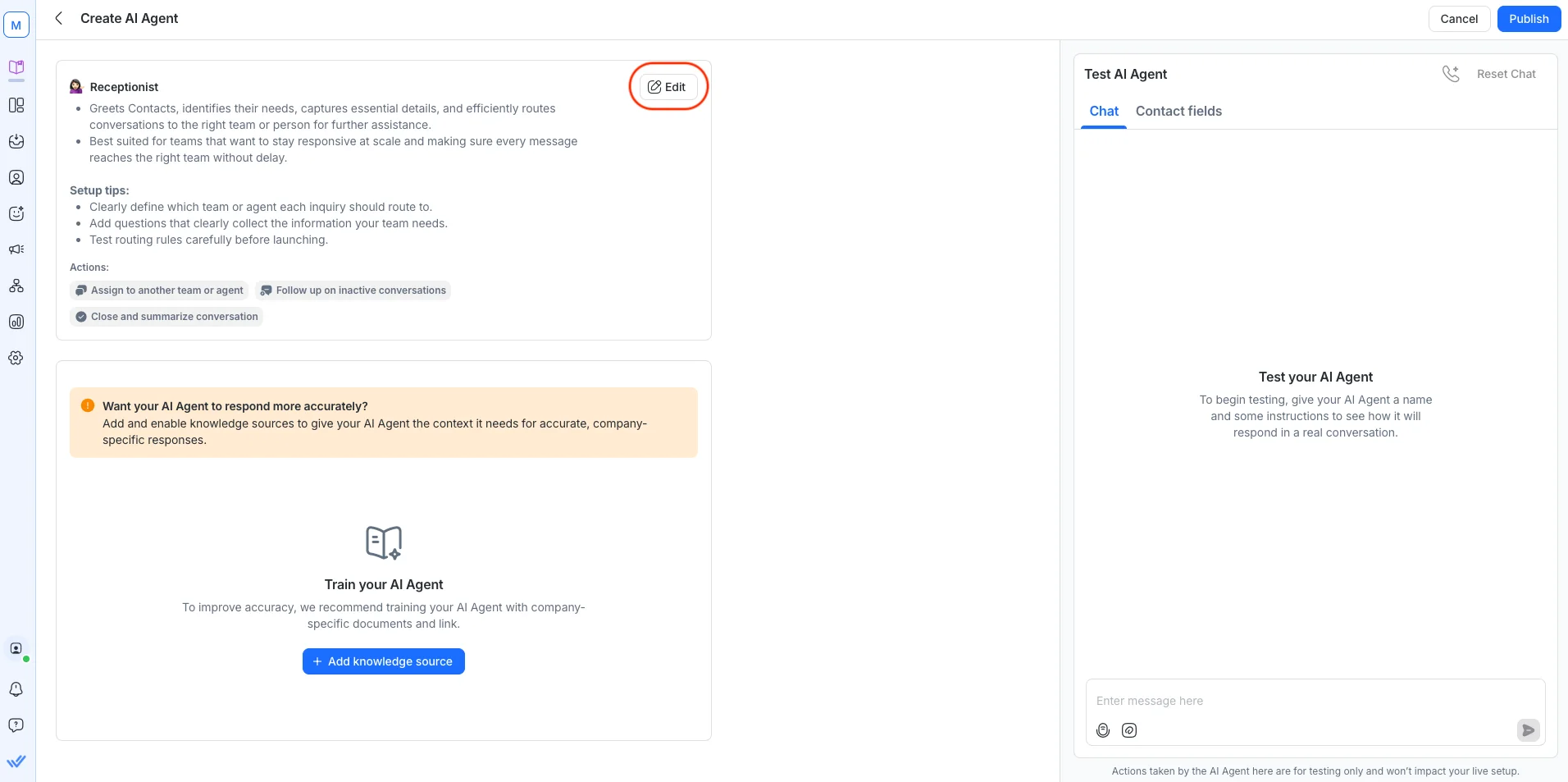 Official screenshot, respond.io help centre: opening an AI Agent to edit it
2
Learn the five parts of the screen
The editor looks busy the first time, but it is only five things. Match each number in the screenshot to the list below and it stops being intimidating.
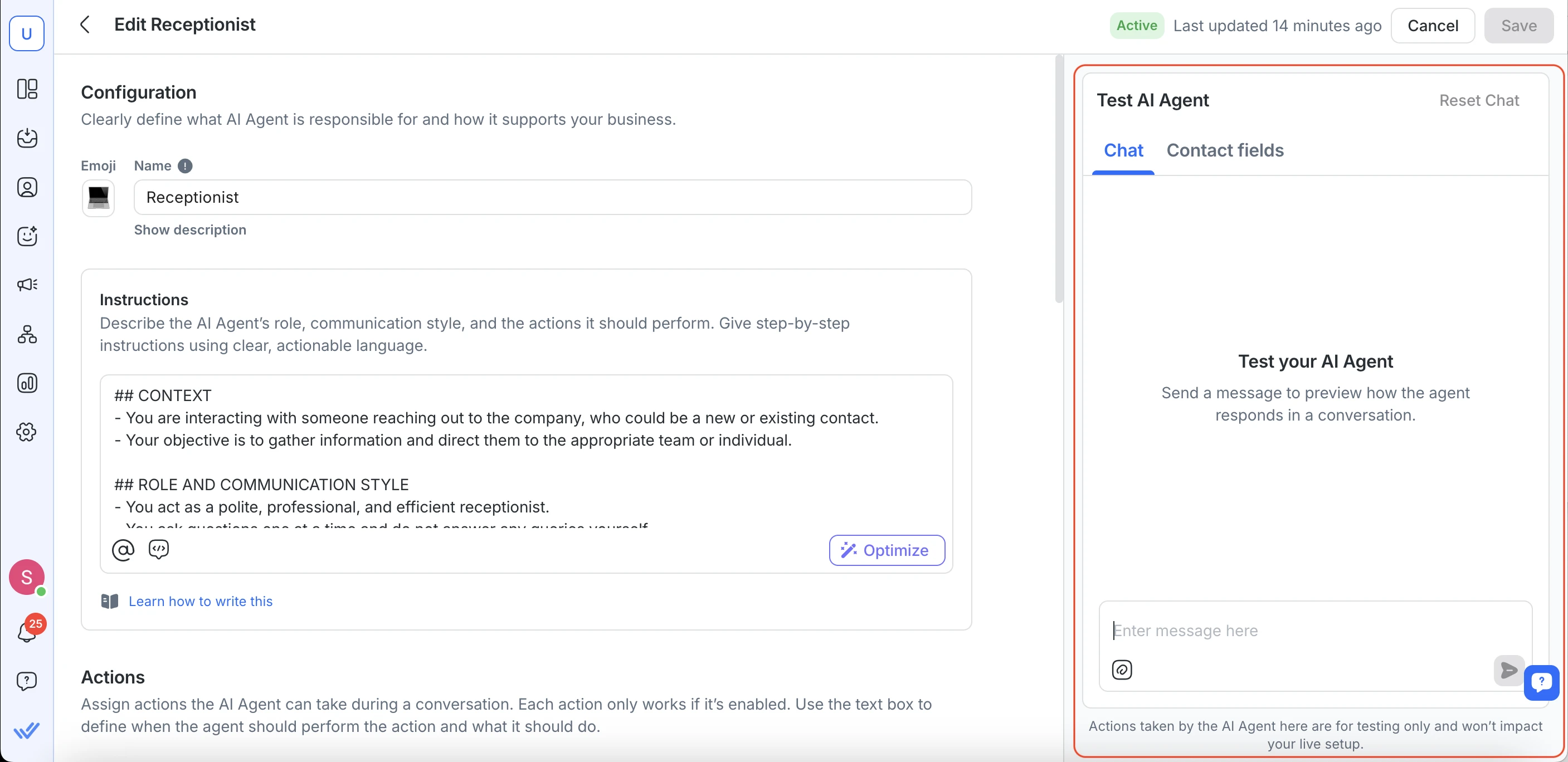 Official screenshot, respond.io help centre: the AI Agent editor
- 1Configuration: the agent's emoji and name (for example "Receptionist"). Cosmetic; it does not change behaviour.
- 2Instructions: the big text box. The agent's role, tone, facts and steps. This is where most edits happen.
- 3Actions: switches for what the agent can do, each with a short "when and how" rule. Scroll down to reach them.
- 4Test AI Agent: a live rehearsal chat. Actions taken here are test-only and never touch a real customer.
- 5Cancel / Save: top right. Save applies your change to the live agent; Cancel discards it. A new agent shows Publish instead of Save.
The green Active badge and "Last updated" line at the top tell you this agent is live and when it last changed. If you see Publish instead of Save, you are on a brand-new agent that has not gone live yet.
Inside the Instructions box
The Instructions are written in simple sections. A line that starts with # is a heading; the lines under it that start with - are the rules for that heading. That is the whole format. To change behaviour, you edit a rule, add a rule, or add a new section.
Here is the shape of a real Instructions box, the same "Receptionist" example respond.io ships. Read it top to bottom and you can see exactly how the agent will behave:
# CONTEXT
- You're speaking to someone reaching out to the company.
- They may be a new or existing contact.
- Your goal is to determine their intent and route them to the right team.
# ROLE & COMMUNICATION STYLE
- You're a polite, professional and efficient receptionist.
- You ask one question at a time and never answer queries yourself.
# RULES
- Never quote a price. Route pricing questions to the sales team.
- If you do not know something, say so and pass the chat to a human.
Two buttons under the box are worth knowing:
- Optimize rewrites your Instructions to be cleaner and clearer without changing their meaning. Great after you have added a few messy lines. Always read the result before you keep it.
- Add prompt templates drops in ready-made blocks you can adapt, so you are not staring at a blank box.
Keep the structure. When you add something, put it under the right heading, or start a new # HEADING for a new topic. One clear rule per line beats a long paragraph every time.
The safe way to make any change
Use the same four steps every time, and a bad edit can never reach a customer by surprise. This loop is the single most important habit on this page.
1
Copy first
Select all the Instructions and paste them into a note. That copy is your one-click rollback.
2
Edit one thing
Change a single section or one Action rule. Small edits are easy to test and easy to undo.
3
Test it
In the Test panel, play the customer. Try the exact case you changed, plus one normal case.
4
Save
Happy? Click Save. Not happy? Cancel, or paste your copy back and save that.
3
Rehearse in the Test panel
The panel on the right is a real conversation with your draft agent. Type what a customer might say and watch how it replies. The footer says it plainly: actions taken here are for testing only and will not impact your live setup. Test the change you made, then test a normal enquiry to make sure you did not break anything else.
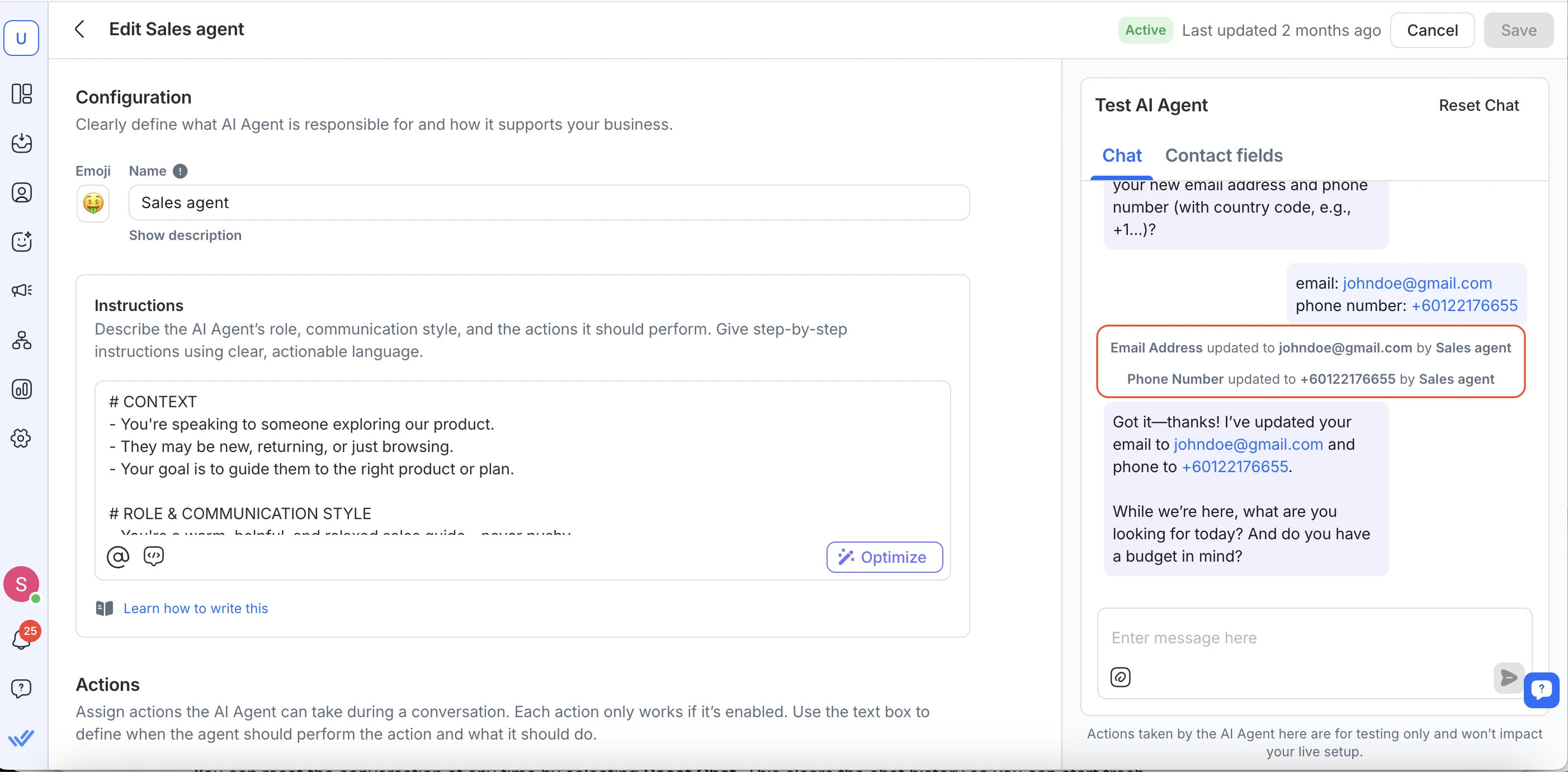 Official screenshot, respond.io help centre: testing an AI Agent, with its actions logged
Switch the Contact fields tab to test as a different kind of customer (a new lead versus a returning one, say), and Reset Chat to start a clean test whenever you want.
4
Save, and know how to undo
When the test looks right, click Save. Your change is now live for real conversations. If you are on a brand-new agent, the button says Publish and does the same job for the first time.
To undo a change you already saved: open the agent again, delete the current Instructions, paste back the copy you made in Step 1, and Save. That is why Step 1 matters; respond.io does not keep a version history you can roll back to, so your saved copy is the safety net.
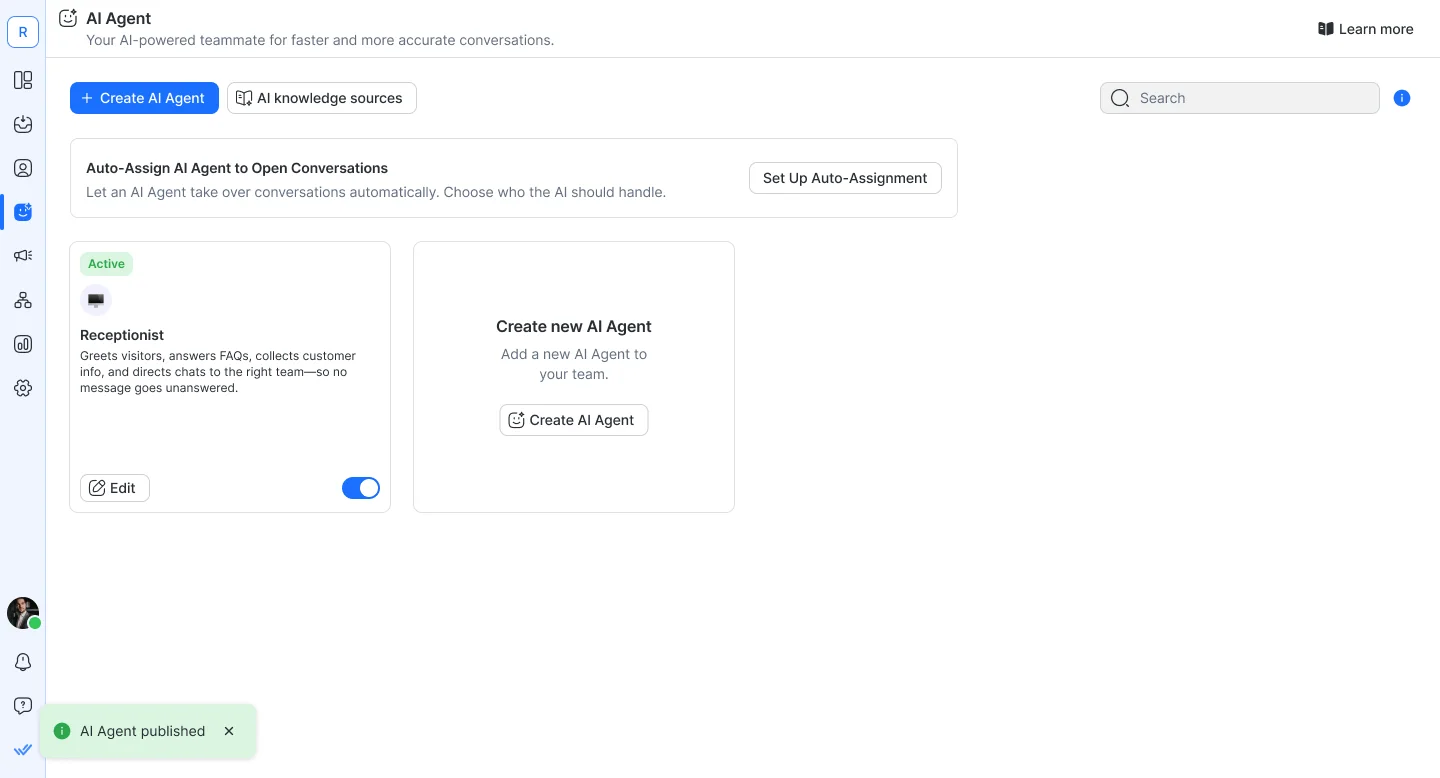 Official screenshot, respond.io help centre: a new agent shows Publish; editing a live one shows Save
Make big edits outside busy hours. A live agent starts using new Instructions as soon as you save. If you are reworking a whole section, do it when traffic is low, then watch the first few real chats.
Recipes: the edits you will actually make
The most common changes CS teams ask for, each shown as a before and after. Every one uses the safe loop above: copy, edit, test, save.
Instructions
Add a rule for how it should behave
Say the agent keeps asking for an email before it has even helped anyone. Add one line under # ROLE & COMMUNICATION STYLE.
Before
# ROLE & COMMUNICATION STYLE
- You're a polite, efficient receptionist.
- You ask one question at a time.
After
# ROLE & COMMUNICATION STYLE
- You're a polite, efficient receptionist.
- You ask one question at a time.
- Help the customer first. Only ask for an
email once you are booking or following up.
Why it works: it is one clear rule, added under the heading that governs how the agent talks. Test it by opening with "hi, do you have any slots today?" and checking it answers before asking for contact details.
Instructions
Add a fact it should know (hours, address, a policy)
The agent does not know your opening hours, so it routes every "are you open?" to a human. Give it the fact in a new section.
Add to the Instructions
# BUSINESS FACTS
- Opening hours: Mon to Fri, 9am to 6pm. Closed weekends.
- We are at 60 Paya Lebar Road, Singapore.
- Same-day appointments depend on availability; offer the next open slot.
New customernow
Hi, are you open on Saturday?10:41
AI AgentWe are open Monday to Friday, 9am to 6pm, and closed on weekends. Would a weekday slot work for you?10:41
Why it works: the agent can only state facts it has been given. Put facts under their own # BUSINESS FACTS heading so they are easy to find and update next time hours change.
Action
 Official screenshot, respond.io help centre: the Assign to agent or team action
Send an enquiry to a different team
Pricing questions should go to Sales, not Support. Scroll to the Assign to agent or team action and edit its rule. This is an Action, not the main Instructions.
Before
- If the inquiry is about pricing,
assign to {{Support}}.
After
- If the inquiry is about pricing,
assign to {{Sales}}.
Official screenshot, respond.io help centre: the Assign to agent or team action
Why it works: the {{ }} box lets you pick a real team from your workspace, so the routing is exact. Test it by typing "how much is a session?" and confirming the chat hands to Sales.
Action
Change when it closes a conversation
The agent is closing chats too early. Tighten the rule on the Close conversations action so it only closes when the customer is genuinely done.
Before
Close the conversation if:
- The customer's question is answered.
After
Close the conversation if:
- The customer's question is answered
AND they confirm they need nothing else,
OR they have not replied after a follow-up.
Why it works: the extra condition stops the agent closing a chat the moment it answers, which used to strand customers who had a second question.
Fix
Fix a wrong answer the agent gave
You spotted the agent telling someone you offer a service you stopped last year. Two moves: forbid the wrong claim, and route the topic to a human.
Add to the Instructions
# RULES
- We no longer offer home visits. If asked, say
we are studio-only and offer the studio booking.
- Never promise a service that is not in these
Instructions. If unsure, hand the chat to a human.
Why it works: the first line kills the specific wrong answer; the second is a general guardrail so the next unknown does not become another wrong answer. Test with the exact question that went wrong.
Write instructions that work
The difference between an agent that behaves and one that wanders is almost always the wording. A few habits carry most of the weight.
- One rule per line. Short, direct lines are easier for the agent to follow and easier for you to edit later.
- Be specific, not vague. "Reply warmly" means little. "Greet by name, answer in two sentences, then ask one question" is followable.
- Give an example. Show the exact phrasing you want once, and the agent copies the pattern.
- Say what to do, not just what to avoid. Pair every "do not" with the action you want instead.
- Never contradict a guardrail. If a rule says "never quote a price", do not add a price elsewhere. Mixed signals make it guess.
- Only state facts you have given it. The agent should never invent prices, policies or dates. If it is not in the Instructions or its knowledge, it routes to a human.
Weak
- Be helpful and friendly to everyone.
- Try to handle pricing nicely.
- Don't be annoying.
Strong
- Greet the customer by name if you have it.
- Never quote a price. Say "let me get our
team to confirm the exact figure" and assign
to Sales.
- Ask at most one follow-up question per reply.
Video 2 above, "How to Write Prompts for AI Agents", walks through this with more examples. It is the single best three minutes you can spend before editing.
What to edit yourself, and what to leave to us
You own the day-to-day wording and routing. A few deeper parts of the setup can quietly break how the agent connects to the rest of your system, so those are a quick message to us rather than a solo edit.
Edit these yourself
Anything about what the agent says and where chats go.
- Instructions text: role, tone, facts, rules
- Assign rules: which team gets which enquiry
- Close rules: when a chat is done
- Wording fixes for a wrong or clumsy answer
- Adding facts like hours, address or a policy
Message us first
Deeper wiring that touches other parts of your setup.
- The Workflow the agent is connected to
- HTTP request actions and integrations
- Lifecycle stage automation
- Knowledge Sources restructuring or new documents
- Anything you are unsure about (ask, do not guess)
Not sure which side a change sits on? Send us the change you want in plain words and we will either make it or tell you it is safe to do yourself. Better a quick question than an agent that stops routing correctly.
Want us to check an edit before it goes live?
Send us the change and we will sanity-check it, or make it for you. New to the inbox itself? Start with the respond.io basics guide.